
OXYGEN 8.0 – Major Release with Expanding Connectivity, Mobility and Usability
With the release of OXYGEN 8.0, we introduce our new major update that significantly expands control, flexibility, and workflow efficiency across the entire OXYGEN ecosystem. The key focus of this release lies in three main areas:
- The launch of our new mobile measurement app OXYGEN-GO
- Enhanced remote control and configurability
- Various usability improvements for both OXYGEN and the OXYGEN SDK
Together, these updates provide greater mobility, deeper automation capabilities, and a more streamlined user experience. Ready to explore the new features? Download OXYGEN 8.0 and start measuring.
New Features:
- OXYGEN-GO
- Increased XCP Data Transfer Rate
- gPTP Support
- SCPI Extensions
- Channel Tags
- Instrument Grouping
- *.atfx Export
- Offline use of Scope instrument
- Additional improvements
- New OXYGEN-SDK Features
- New TRION3-24xx-LV / TRION3-24xx-ACC Modules
OXYGEN-GO
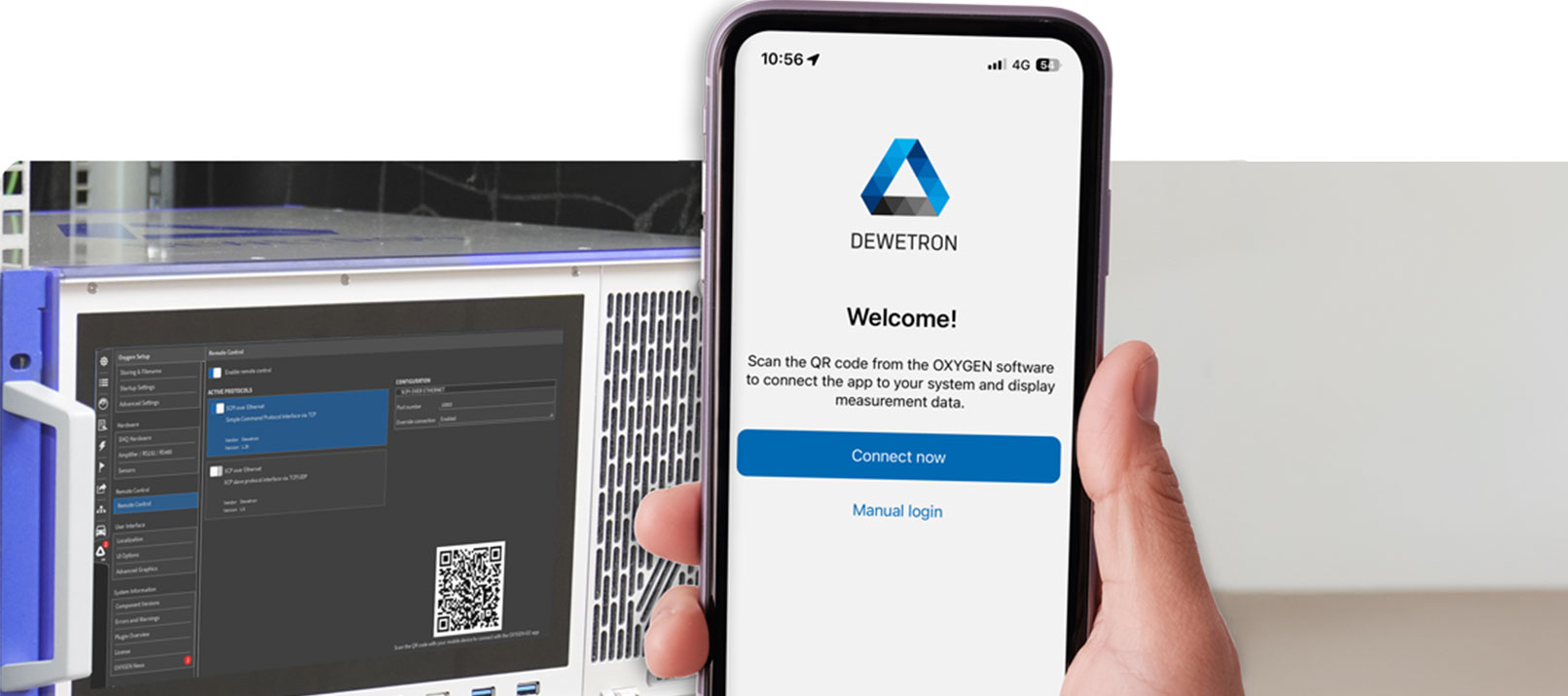
One highlight of this major release is OXYGEN-GO, our new mobile measurement app and smartphone extension for an OXYGEN-based measurement environment. OXYGEN-GO is designed to support and streamline your testing procedures by providing quick access to key measurement information directly from your mobile device. The app is available free of charge for both Android and iOS. For more details on available features and configuration options, see here.
Increased XCP Data Transfer Rate
Remote configurability has been further enhanced by significantly increasing the XCP data transfer rate. With OXYGEN 8.0, the maximum data transfer rate has been raised from 10 kS/s up to 2 MS/s, enabling much higher data throughput for XCP-based measurements. The newly available transfer rate steps are:
- 50 kS/s
- 100 kS/s
- 500 kS/s
- 1 MS/s
- 2 MS/s
In addition, you can now choose whether raw values or averaged values are transferred, providing greater flexibility depending on bandwidth and analysis requirements.
For advanced users: The selected data transfer rate and mode are defined via the EVENT configuration in the corresponding *.a2l file.
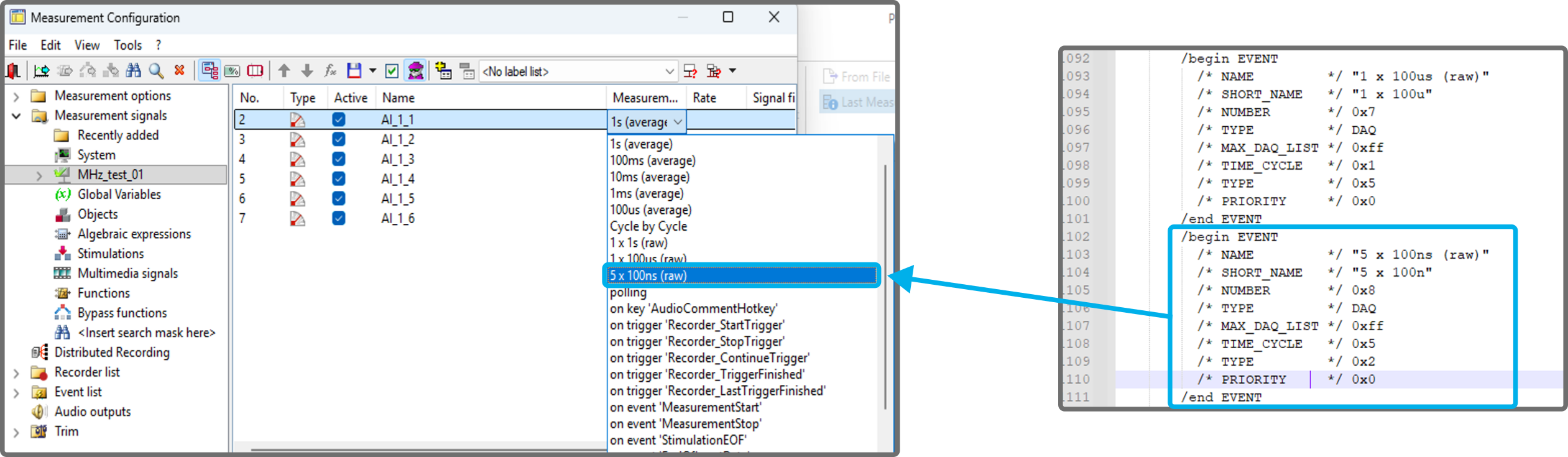
Fig. 1: Example of 500 kS/s raw data transfer and the corresponding *.a2l file configuration
gPTP Support
With this release, we extended our PTP functionality – we now support gPTP, a specialized and constrained profile of the standard PTP protocol. It can be used as both an input and an output signal. This enables flexible time synchronization setups, allowing a DEWE device to operate either as a synchronized node within a gPTP network or as the central time master.
Important Notes
- gPTP requires a DEWE3 chassis equipped with the DEWE3-OPT-IRIG/PTP option.
- Using gPTP Out (operating the DEWE device as PTP master) requires the OXY-OPT-PTP-OUT software license.
SCPI Extensions
Another key highlight of OXYGEN 8.0 is the significantly enhanced remote configurability. This release expands the SCPI command set, enabling improved configuration and automation of our measurement software. The new commands focus on simplifying automated test routines, dynamic visualization, and automated reporting, providing comprehensive SCPI-based control over measurement visualization, screen and instrument configurations, and dynamic channel assignments.
The following functionalities have been implemented:
- Select, add, remove, query selected measurement screen
- Add/ remove /change position/ change size of instruments
- Add/ remove /query channels assigned to an instrument
- Manipulate Recorder‘s & Chart Recorder‘s:
- X-Axis & Y-Axis scaling
- Enable/ disable/ manipulate A/B cursors and their Statistic values
- Query cursor data
- Reset the saturation display of the saturation meter
- Set /get orange time cursor position
- Save changes to the loaded *.dmd-file
- Query available disk space and estimated remaining recording time
For detailed syntax and parameter descriptions, refer to the SCPI Technical Reference Manual.
The following example demonstrates a typical SCPI-based automation workflow:
-
Screen and Instrument Setup
Adds a new measurement screen, selects it, creates a recorder instrument, resizes it, and assigns a measurement channel:
:SCReen:ADD
:SCReen2:SELect
:SCReen:ITEM2:INSTRuments:ADD "recorder","recorder01",0,0
:INSTRuments:SIZe:WIDth "recorder01",FLOAT,1
:INSTRuments:SIZe:HEIght "recorder01",FLOAT,0.5
:INSTRuments:CHANnels:ADD "recorder01","AI 1/1@ARAD"
![A computer screen displays a data recording interface with a large blue bar graph labeled A 1 1/A:READ [V], covering values from 4.5 to 5.5 on the x-axis and up to 1000 on the y-axis. Various control icons are visible.](https://www.dewetron.com/app/uploads/2026/02/OXYGEN8.0_SCPI-ex1.png)
Fig. 2: Screen and instrument setup
-
Recorder Axis Scaling
Configures user specific scaling for the recorder axes:
:INSTRuments:AXIs:X:DURation "recorder01",FLOAT,0.1
:INSTRuments:AXIs:X:STARt "recorder01",FLOAT,3.5
:INSTR:AXIs:Y:AUTO "recorder01",BOOL,ON
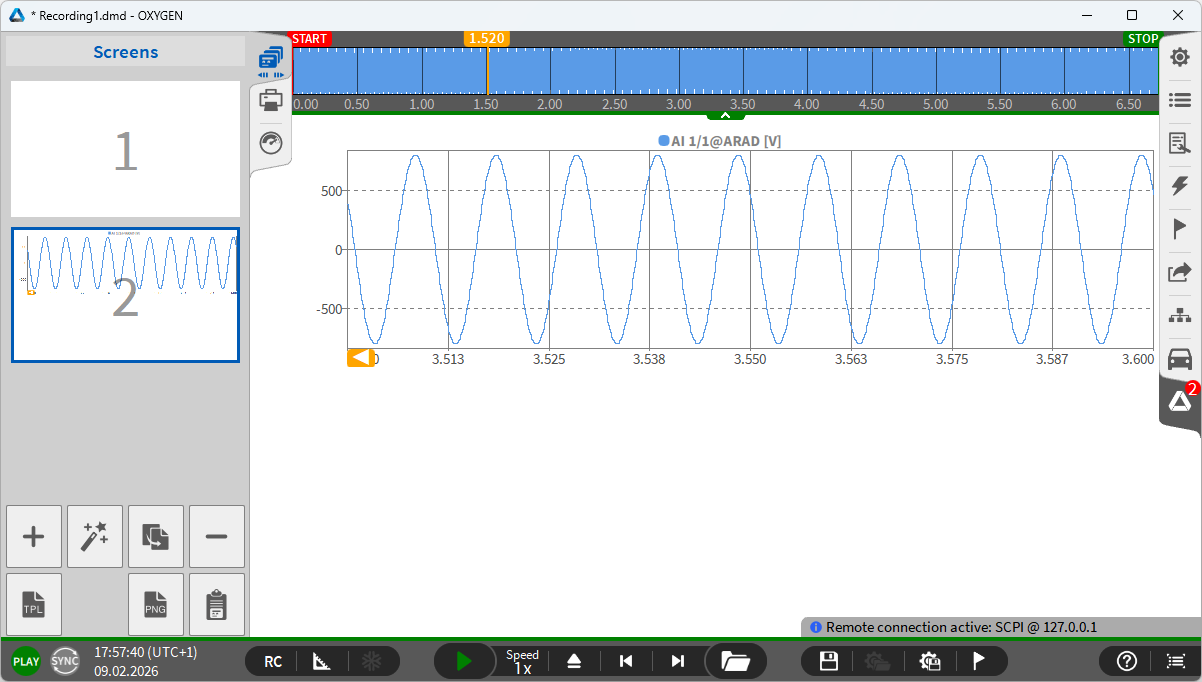
Fig. 3: Recorder axis scaling
-
Cursor Configuration and Data Extraction
Enables A/B cursors, positions them, activates RMS statistics, and queries the resulting values:
:INSTRuments:CURSors:ENABle "recorder01",BOOL,ON
:INSTRuments:CURSors:A "recorder01",FLOAT,1.0
:INSTRuments:CURSors:B "recorder01",FLOAT,1.5
:INSTRuments:CURSors:RMS "recorder01",BOOL,ON
:INSTRuments:CURSors:VALues1:GET? "recorder01"
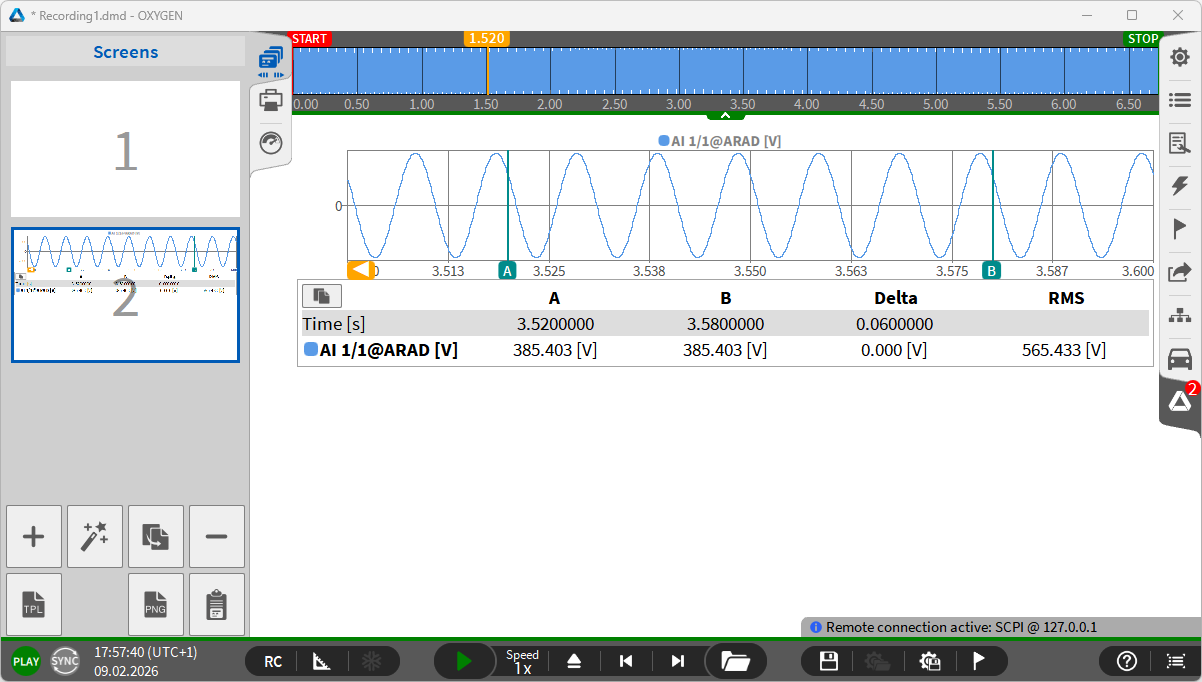
Fig. 4: Cursor Configuration and Data Extraction
Channel Tags
With the new Tag Manager, OXYGEN 8.0 introduces the ability to assign individual tags to channels directly within the channel list or in the channel settings. Each channel can have multiple tags, and selecting a tag instantly elects all channels sharing the same tag.
Channel tags enable user-defined filtering within the filter menu, visual channel grouping using individual tag colors, and a fast selection of related channels with a single click on. This significantly simplifies the handling of large channel counts and complex measurement setups.
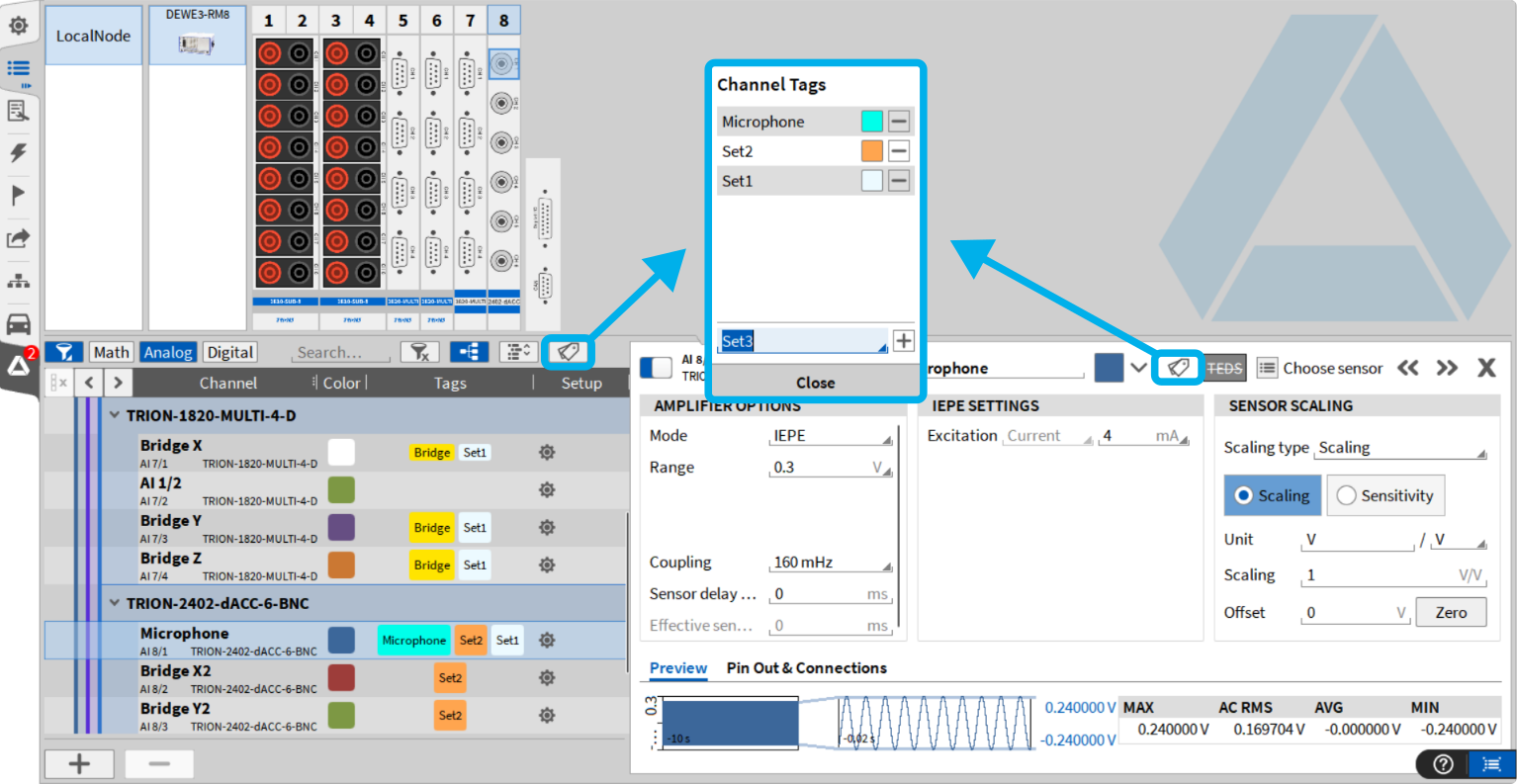
Fig. 5: Creating/Assigning channel tags
Instrument Grouping
Instrument Grouping allows multiple instruments to be combined into a single Instrument Group. Grouped instruments can be resized together, assigned channels to all instruments at once, and labeled with a custom group name.
To create a group, simply select multiple instruments and click Group selected instruments within the Instrument Properties menu. Groups can be separated again at any time using the Dismantle button. Further, additional instruments can be added to an existing group at any time.
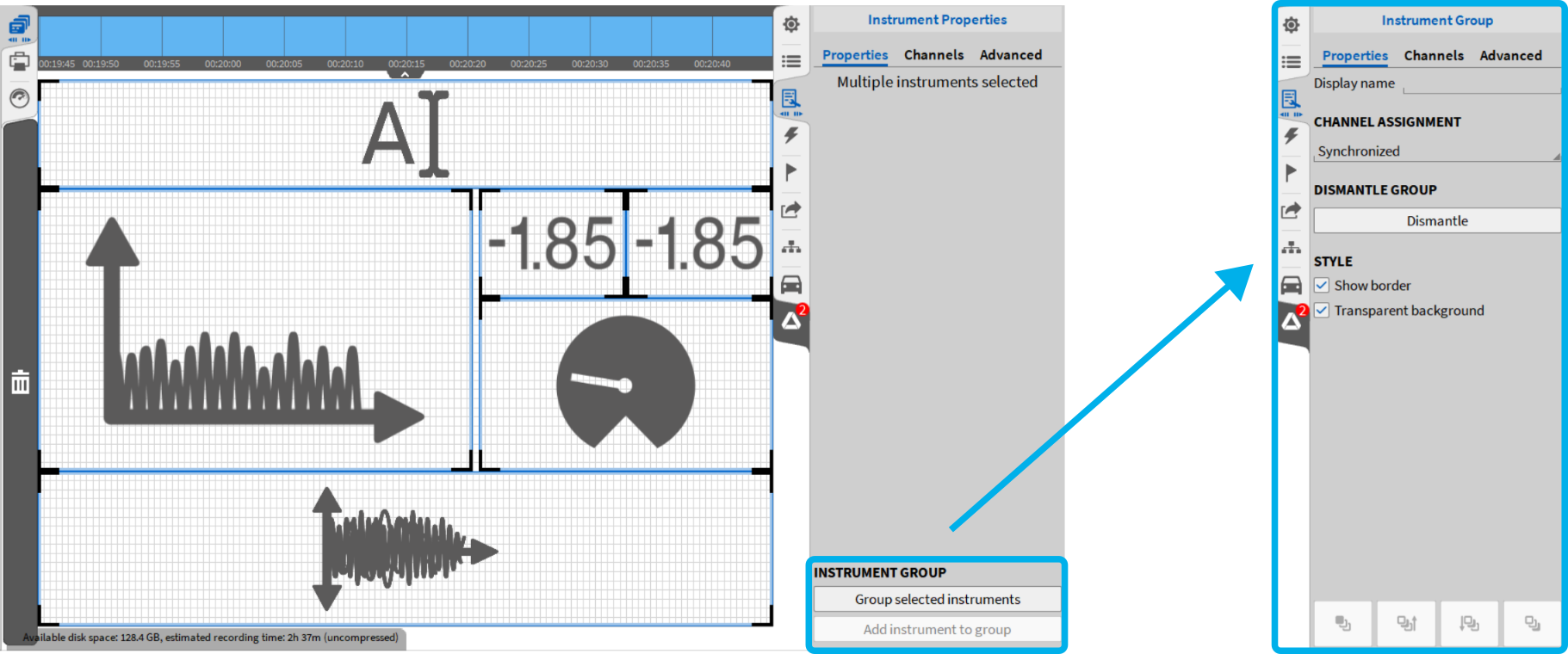
Fig. 6: Grouping multiple instruments into one group
*.atfx Export
OXYGEN now supports the export of ASAM-compliant *.atfx files. The *.atfx file serves as a description file for the corresponding *.dmd measurement file and does not contain any measurement data. Therefore, the *.atfx file must always be used together with its associated *.dmd file. By default, the *.atfx file is created with the same name as the *.dmd file and exported to the same directory.
Note: This export format is only available for uncompressed *.dmd files. Please ensure data compression is disabled before recording (OXYGEN Setup → Advanced Settings → disable “Record compressed data files”).
Offline use of Scope instrument
The Scope instrument can now be used more effectively in offline mode when working with *.dmd files. Key functionalities previously limited to live operation – such as trigger configuration and the display of stationary signals—are now also available during offline analysis. In addition, offline mode now includes the ability to quickly jump to the next or previous trigger event (see Fig. XX, improving navigation and efficiency when reviewing recorded data.
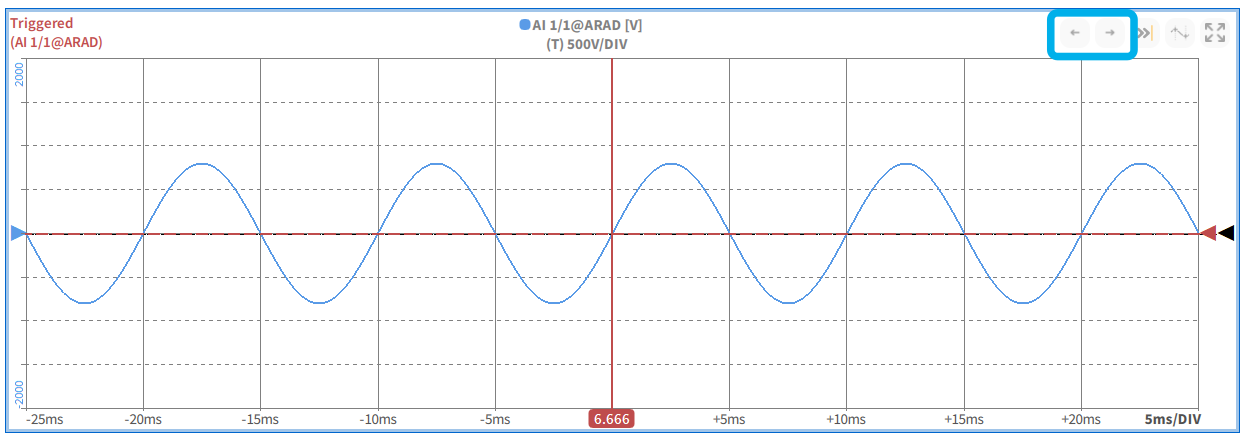
Fig. 7: Scope instrument in offline mode – button for previous and next trigger event highlighted
Additional improvements
Several smaller enhancements have been implemented across OXYGEN to further improve usability and consistency:
-
-
- Instrument Label Configuration – Style settings such as “Select suitable unit” and “Precision” now also apply to cursor values, ensuring consistent formatting.
- Standardized Enable/Disable Behavior – Markers, cursors, and data labels now follow a consistent activation/deactivation behavior and can be controlled directly within the respective instrument.
- Table Instrument Enhancements – The table instrument now supports scrolling as well as the new instrument property “Reverse time” for time-based sorting (bottom-up or top-down).
- CAN-Out Configuration – The output channel for CAN-Out mode can now be configured directly in the “Advanced” tab of the channel list via the “Reference Channel” column, allowing quicker setup adjustments.
-
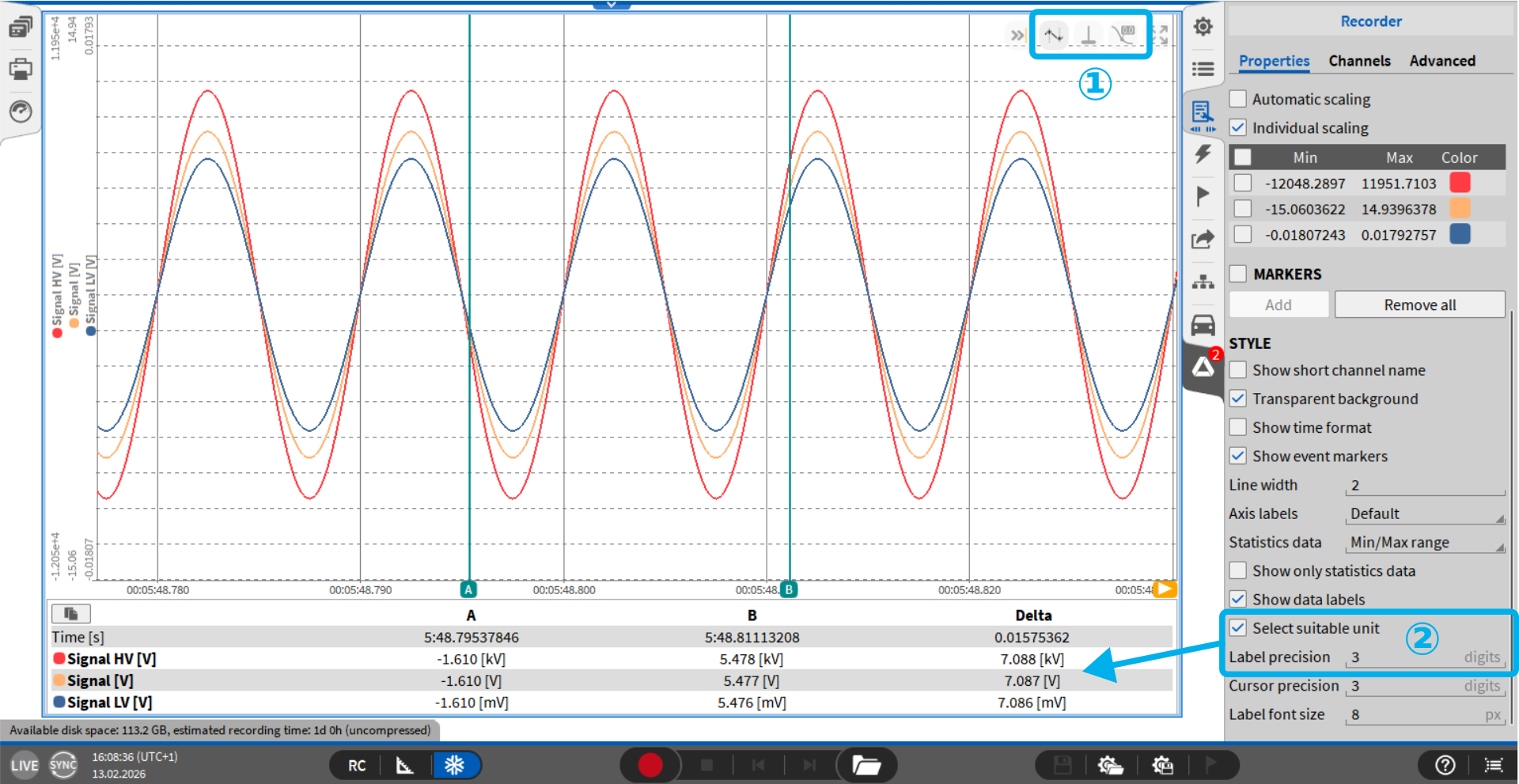
Fig. 8: Instrument label configuration and standardized enable/disable behavior
New OXYGEN-SDK Features
Alongside the major software release, OXYGEN SDK has also been enhanced with new development capabilities and improved usability.
Video Source Support
The SDK now allows the implementation of video sources, enabling you to integrate custom video functionality directly into your OXYGEN plugins. An example implementation is available on GitHub.
Plugin Wizard
Our new Plugin Wizard simplifies the creation of custom OXYGEN plugins. The wizard automatically clones the OXYGEN-SDK repository from GitHub and generates a ready-to-use project template, allowing you to build custom OXYGEN plugins directly within Microsoft Visual Studio.
Requirements & Quick Setup Guide
Required installation steps:
- Install Microsoft Visual Studio 2022
- Install the Desktop Development with C++ workload (can be selected during VS installation or added later)
- Install OxygenPluginWizard.vsix (available on GitHub)
When creating a new project in Visual Studio, templates for both standard plugins and export plugins are available. The wizard automatically clones the SDK repository and installs required dependencies. From here on, you can directly handle your plugin in the generated *.cpp files. After building the project, a *.plugin file is created automatically. Finally, to activate the plugin, simply copy the *.plugin file into the OXYGEN plugin directory (C:\Users\Public\Documents\Dewetron\Oxygen\Plugins) and start OXYGEN to test it.
New TRION3-24xx-LV / TRION3-24xx-ACC Modules
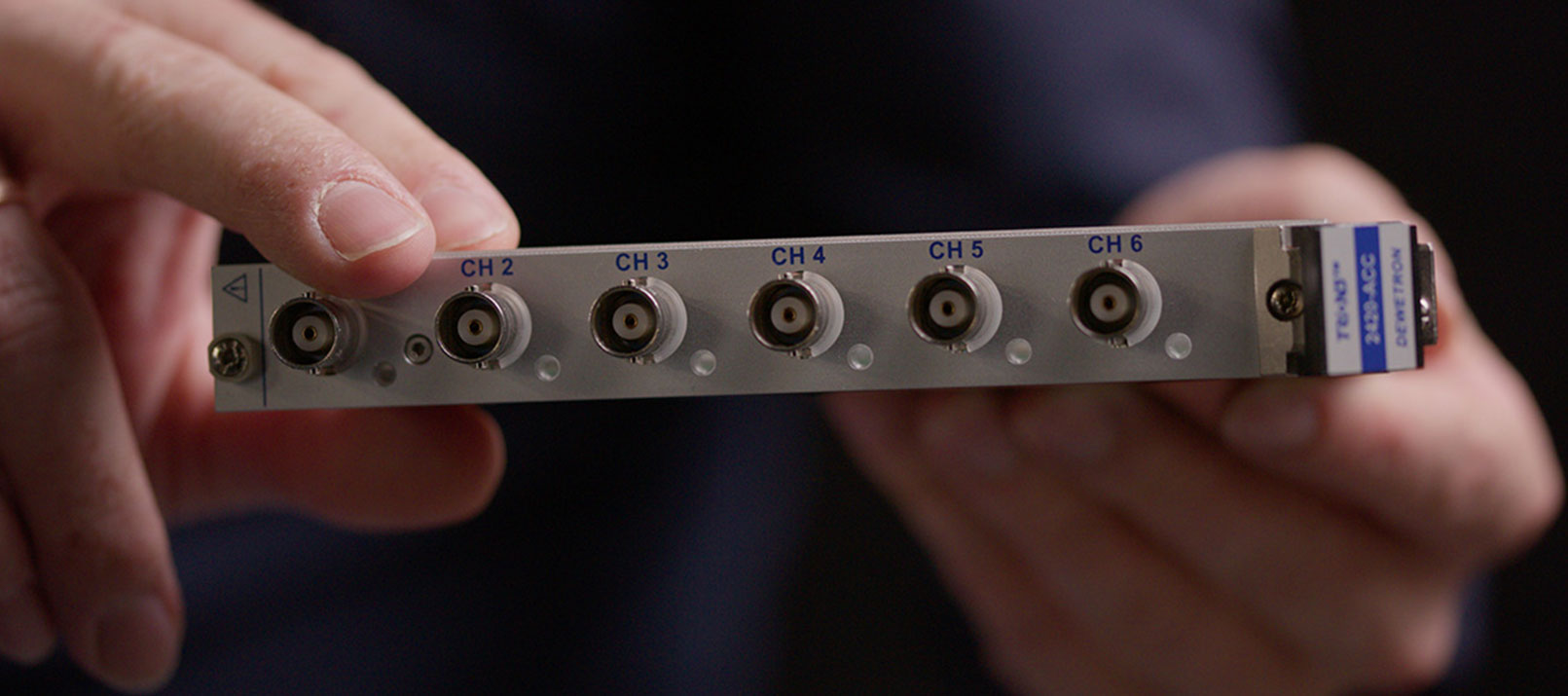
With our OXYGEN measurement software major release, we also introduce a new hardware novality to you: our new low voltage and IEPE modules:
-
-
- TRION3-24xx-LV – Designed for precise low-voltage measurements available with 200 kS/s or 2 MS/s sample rate per channel
- TRION3-24xx-ACC – Optimized for vibration and NVH measurements available with 200 kS/s or 2 MS/s sample rate per channel
-
For detailed information on available module variants, key features, and technical specifications, see here.
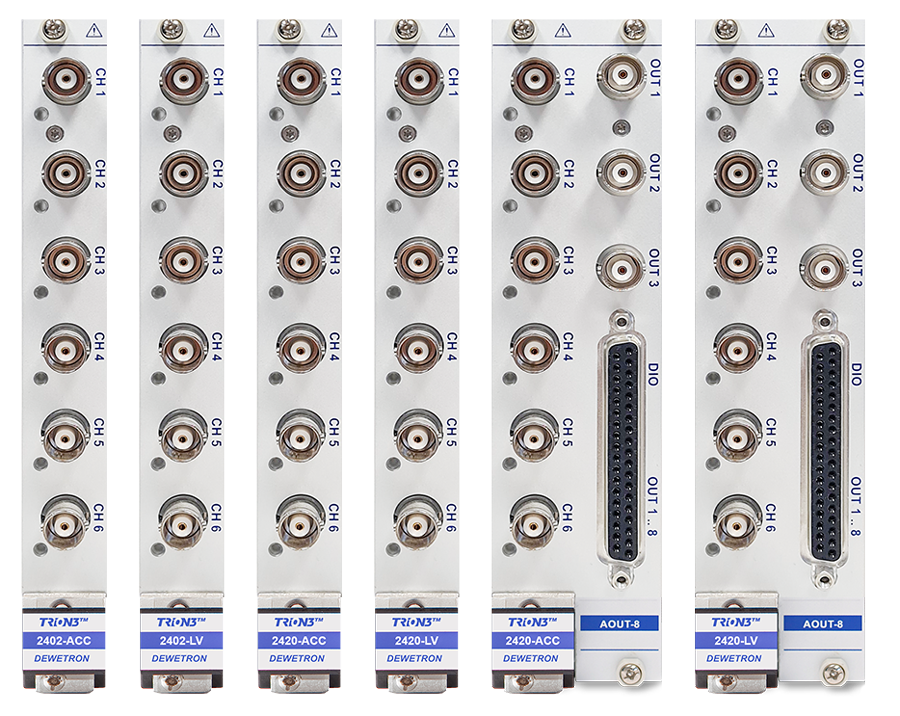
Fig. 9: New TRION3-24xx-LV / TRION3-24xx-ACC modules
Want to experience all news at one glance?
You are currently viewing a placeholder content from YouTube. To access the actual content, click the button below. Please note that doing so will share data with third-party providers.
More Information